
Video Duration Slider & Numeric Input: Set Length Quickly and Precisely
Video duration setting upgraded from a click-list to a slider + numeric input, with model-aware snapping and reason hints for a more intuitive workflow.
Start with a familiar bottleneck
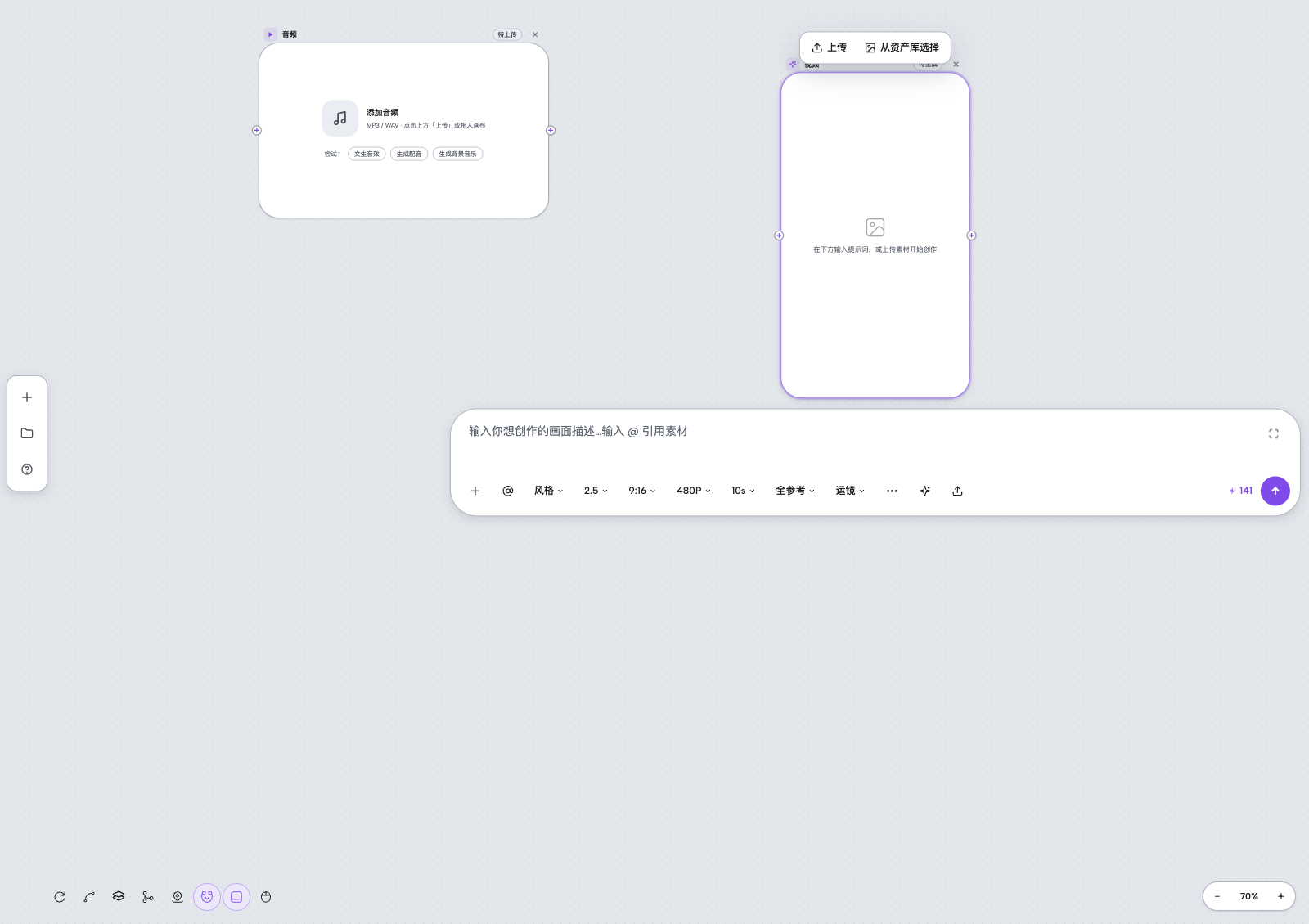
When configuring a video node on the canvas, users previously had to pick from a fixed list (e.g., 5s, 10s, 15s). With many or non-contiguous supported durations, the list became cumbersome and hard to scan. Direct typing of an unsupported value led to silent adjustments or errors without explanation.
Keep the workflow on one canvas
Zhishiyun replaced the duration picker with a combined slider + numeric input. The slider maps to the model's discrete supported durations, so each step is reachable. The numeric field accepts any seconds and snaps to the nearest supported value on blur or Enter, with a clear reason shown. The panel stays open until the user clicks outside, keeping the flow smooth.
Slider and numeric input work together for intuitive control
In the video node's parameter panel, clicking 'Video Duration' opens a compact dialog containing a slider and a numeric input that stay in sync: dragging the slider updates the number instantly, and typing a value moves the slider to the matching step.
The slider is not continuous but maps to the model's discrete duration options (e.g., 5s, 10s, 15s), so even sparse steps are reachable without getting stuck. The numeric field accepts any seconds and automatically snaps to the nearest supported value, with an inline hint such as 'Adjusted to 10s (supported: 5s / 10s / 15s)'.
Automatic snapping and reason hints prevent invalid settings
When a user enters a duration outside the model's supported range, the system does not silently accept or reject it. Instead, it snaps the value to the nearest supported option and shows the adjustment reason below the input. A page-level toast also displays the same explanation, so it remains visible even after the panel closes.
The snapping logic is based on the current model's capabilities (caps.durations), not a hard-coded limit. If the backend does not provide durations, a fallback of 5s / 10s / 15s is used, ensuring the slider and input always have options.
Panel interaction refinements for a smoother experience
The duration dialog expands upward to avoid covering the canvas controls below, and its width is reduced to 248px for a more focused layout. On desktop, the input is auto-focused when the panel opens, so users can type seconds immediately; on touch devices, the keyboard is not auto-shown to avoid obscuring the slider.
The panel stays open after applying a duration, allowing users to tweak other parameters without reopening. Clicking outside closes it. Both the slider and input support keyboard interaction: arrow keys for the slider and numeric keys for the input, catering to mouse and keyboard users.
A simple way to begin
- Open the video node's parameter panel
Select a video node on the Zhishiyun canvas and click 'Video Duration' to open the duration dialog.
- Set the duration via slider or numeric input
Drag the slider to choose a duration step, or type seconds directly into the numeric field. The slider maps to the model's supported discrete values; the input accepts any number.
- Confirm and review the snapping hint
If you enter an unsupported value, the system snaps to the nearest supported one and shows the reason both inline and in a page toast. After confirming, click outside the panel to close it.